Saving SkiaSharp bitmaps to files
After a SkiaSharp application has created or modified a bitmap, the application might want to save the bitmap to the user's photo library:
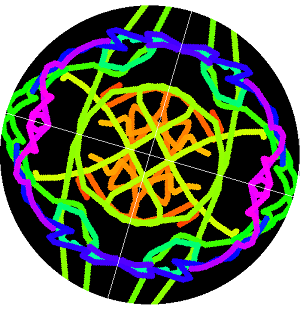
This task encompasses two steps:
- Converting the SkiaSharp bitmap to data in a particular file format, such as JPEG or PNG.
- Saving the result to the photo library using platform-specific code.
File formats and codecs
Most of today's popular bitmap file formats use compression to reduce storage space. The two broad categories of compression techniques are called lossy and lossless. These terms indicate whether or not the compression algorithm results in the loss of data.
The most popular lossy format was developed by the Joint Photographic Experts Group and is called JPEG. The JPEG compression algorithm analyzes the image using a mathematical tool called the discrete cosine transform, and attempts to remove data that is not crucial to preserving the image's visual fidelity. The degree of compression can be controlled with a setting generally referred to as quality. Higher quality settings result in larger files.
In contrast, a lossless compression algorithm analyzes the image for repetition and patterns of pixels that can be encoded in a way that reduces the data but does not result in the loss of any information. The original bitmap data can be restored entirely from the compressed file. The primary lossless compressed file format in use today is Portable Network Graphics (PNG).
Generally, JPEG is used for photographs, while PNG is used for images that have been manually or algorithmically generated. Any lossless compression algorithm that reduces the size of some files must necessarily increase the size of others. Fortunately, this increase in size generally only occurs for data that contains a lot of random (or seemingly random) information.
The compression algorithms are complex enough to warrant two terms that describe the compression and decompression processes:
- decode — read a bitmap file format and decompress it
- encode — compress the bitmap and write to a bitmap file format
The SKBitmap class contains several methods named Decode that create an SKBitmap from a compressed source. All that's required is to supply a filename, stream, or array of bytes. The decoder can determine the file format and hand it off to the proper internal decoding function.
In addition, the SKCodec class has two methods named Create that can create an SKCodec object from a compressed source and allow an application to get more involved in the decoding process. (The SKCodec class is shown in the article Animating SkiaSharp Bitmaps in connection with decoding an animated GIF file.)
When encoding a bitmap, more information is required: The encoder must know the particular file format the application wants to use (JPEG or PNG or something else). If a lossy format is desired, the encode must also know the desired level of quality.
The SKBitmap class defines one Encode method with the following syntax:
public Boolean Encode (SKWStream dst, SKEncodedImageFormat format, Int32 quality)
This method is described in more detail shortly. The encoded bitmap is written to a writable stream. (The 'W' in SKWStream stands for "writable".) The second and third arguments specify the file format and (for lossy formats) the desired quality ranging from 0 to 100.
In addition, the SKImage and SKPixmap classes also define Encode methods that are somewhat more versatile, and which you might prefer. You can easily create an SKImage object from an SKBitmap object using the static SKImage.FromBitmap method. You can obtain an SKPixmap object from an SKBitmap object using the PeekPixels method.
One of the Encode methods defined by SKImage has no parameters and automatically saves to a PNG format. That parameterless method is very easy to use.
Saving bitmap files with Community Toolkit
When you encode an SKBitmap object into a particular file format, generally you'll be left with a stream object of some sort, or an array of data. Some of the Encode methods (including the one with no parameters defined by SKImage) return an SKData object, which can be converted to an array of bytes using the ToArray method. This data must then be saved to a file.
Saving to a file in application local storage is quite easy because you can use standard System.IO classes and methods for this task. This technique is demonstrated in the article Animating SkiaSharp Bitmaps in connection with animating a series of bitmaps of the Mandelbrot set.
If you want to let the user save a file to a location of their choice, .NET MAUI provides a cross-platform solution through the Community Toolkit FileSaver. This eliminates the need for platform-specific code.
Setting up the Community Toolkit
First, add the Community Toolkit NuGet package to your project:
<PackageReference Include="CommunityToolkit.Maui" Version="13.0.0" />
Then register it in your MauiProgram.cs:
using CommunityToolkit.Maui;

public static MauiApp CreateMauiApp()
{
    var builder = MauiApp.CreateBuilder();
    builder
        .UseMauiApp<App>()
        .UseMauiCommunityToolkit()
        // ... other configuration
    return builder.Build();
}
Using FileSaver to save images
The FileSaver opens a native file picker dialog that lets the user choose where to save the file. Here's how to save an encoded bitmap:
using CommunityToolkit.Maui.Storage;

// Encode the bitmap
using SKImage image = SKImage.FromBitmap(bitmap);
SKData data = image.Encode(SKEncodedImageFormat.Png, 100);

// Save using FileSaver (opens a file picker dialog)
using var stream = new MemoryStream(data.ToArray());
var result = await FileSaver.Default.SaveAsync("MyImage.png", stream, CancellationToken.None);

if (result.IsSuccessful)
{
    // File was saved to: result.FilePath
}
else
{
    // Handle the error: result.Exception
}
This approach offers several advantages over the old platform-specific approach:
- Cross-platform: Works on Android, iOS, macOS, and Windows with no platform-specific code
- User control: The user chooses where to save the file
- Testable: The
IFileSaverinterface can be mocked for unit testing
Exploring the image formats
Here's the Encode method of SKImage again:
public Boolean Encode (SKWStream dst, SKEncodedImageFormat format, Int32 quality)
SKEncodedImageFormat is an enumeration with members that refer to eleven bitmap file formats, some of which are rather obscure:
Astc— Adaptive Scalable Texture CompressionBmp— Windows BitmapDng— Adobe Digital NegativeGif— Graphics Interchange FormatIco— Windows icon imagesJpeg— Joint Photographic Experts GroupKtx— Khronos texture format for OpenGLPkm— Custom format for GrafX2Png— Portable Network GraphicsWbmp— Wireless Application Protocol Bitmap Format (1 bit per pixel)Webp— Google WebP format
As you'll see shortly, only three of these file formats (Jpeg, Png, and Webp) are actually supported by SkiaSharp.
To save an SKBitmap object named bitmap to a user-selected location, you need a member of the SKEncodedImageFormat enumeration named imageFormat and (for lossy formats) an integer quality variable. You can use the following code to encode the bitmap and let the user choose where to save it:
using CommunityToolkit.Maui.Storage;

using (MemoryStream memStream = new MemoryStream())
using (SKManagedWStream wstream = new SKManagedWStream(memStream))
{
    bitmap.Encode(wstream, imageFormat, quality);
    byte[] data = memStream.ToArray();

    // Check the data array for content!
    if (data != null && data.Length > 0)
    {
        using var stream = new MemoryStream(data);
        var result = await FileSaver.Default.SaveAsync(filename, stream, CancellationToken.None);

        if (!result.IsSuccessful)
        {
            // Handle the error
        }
    }
}
The SKManagedWStream class derives from SKWStream (which stands for "writable stream"). The Encode method writes the encoded bitmap file into that stream.
The Save File Formats page in the sample application uses similar code to allow you to experiment with saving a bitmap in the various formats.
The XAML file contains an SKCanvasView that displays a bitmap, while the rest of the page contains everything the application needs to call the Encode method of SKBitmap. It has a Picker for a member of the SKEncodedImageFormat enumeration, a Slider for the quality argument for lossy bitmap formats, an Entry view for a filename, and a Button for saving the file.
<ContentPage xmlns="http://schemas.microsoft.com/dotnet/2021/maui"
             xmlns:x="http://schemas.microsoft.com/winfx/2009/xaml"
             xmlns:skia="clr-namespace:SkiaSharp;assembly=SkiaSharp"
             xmlns:skiaforms="clr-namespace:SkiaSharp.Views.Maui.Controls;assembly=SkiaSharp.Views.Maui.Controls"
             x:Class="DocsSamplesApp.Bitmaps.SaveFileFormatsPage"
             Title="Save File Formats">

    <Grid RowDefinitions="*,Auto,Auto,Auto,Auto,Auto,Auto" Margin="10">
        <skiaforms:SKCanvasView x:Name="canvasView"
                                PaintSurface="OnCanvasViewPaintSurface" />

        <Picker Grid.Row="1"
                x:Name="formatPicker"
                Title="image format"
                SelectedIndexChanged="OnFormatPickerChanged">
            <Picker.ItemsSource>
                <x:Array Type="{x:Type skia:SKEncodedImageFormat}">
                    <x:Static Member="skia:SKEncodedImageFormat.Astc" />
                    <x:Static Member="skia:SKEncodedImageFormat.Bmp" />
                    <x:Static Member="skia:SKEncodedImageFormat.Dng" />
                    <x:Static Member="skia:SKEncodedImageFormat.Gif" />
                    <x:Static Member="skia:SKEncodedImageFormat.Ico" />
                    <x:Static Member="skia:SKEncodedImageFormat.Jpeg" />
                    <x:Static Member="skia:SKEncodedImageFormat.Ktx" />
                    <x:Static Member="skia:SKEncodedImageFormat.Pkm" />
                    <x:Static Member="skia:SKEncodedImageFormat.Png" />
                    <x:Static Member="skia:SKEncodedImageFormat.Wbmp" />
                    <x:Static Member="skia:SKEncodedImageFormat.Webp" />
                </x:Array>
            </Picker.ItemsSource>
        </Picker>

        <Slider Grid.Row="2"
                x:Name="qualitySlider"
                Maximum="100"
                Value="50" />

        <Label Grid.Row="3"
               Text="{Binding Source={x:Reference qualitySlider},
                              Path=Value,
                              StringFormat='Quality = {0:F0}'}"
               HorizontalTextAlignment="Center" />

        <Grid Grid.Row="4" ColumnDefinitions="Auto,*">
            <Label Text="File Name: "
                   VerticalOptions="Center" />

            <Entry Grid.Column="1"
                   x:Name="fileNameEntry"
                   Text="Sample.xxx" />
        </Grid>

        <Button Grid.Row="5"
                Text="Save"
                Clicked="OnButtonClicked">
            <Button.Triggers>
                <DataTrigger TargetType="Button"
                             Binding="{Binding Source={x:Reference formatPicker},
                                               Path=SelectedIndex}"
                             Value="-1">
                    <Setter Property="IsEnabled" Value="False" />
                </DataTrigger>

                <DataTrigger TargetType="Button"
                             Binding="{Binding Source={x:Reference fileNameEntry},
                                               Path=Text.Length}"
                             Value="0">
                    <Setter Property="IsEnabled" Value="False" />
                </DataTrigger>
            </Button.Triggers>
        </Button>

        <Label Grid.Row="6"
               x:Name="statusLabel"
               Text="OK"
               Margin="10, 0" />
    </Grid>
</ContentPage>
The code-behind file loads a bitmap resource and uses the SKCanvasView to display it. That bitmap never changes. The SelectedIndexChanged handler for the Picker modifies the filename with an extension that is the same as the enumeration member:
using CommunityToolkit.Maui.Storage;

public partial class SaveFileFormatsPage : ContentPage
{
    SKBitmap? bitmap;

    public SaveFileFormatsPage ()
    {
        InitializeComponent ();
        _ = LoadBitmapAsync();
    }

    async Task LoadBitmapAsync()
    {
        using Stream stream = await FileSystem.OpenAppPackageFileAsync("MonkeyFace.png");
        bitmap = SKBitmap.Decode(stream);
        canvasView.InvalidateSurface();
    }

    void OnCanvasViewPaintSurface(object? sender, SKPaintSurfaceEventArgs args)
    {
        if (bitmap is null)
            return;
        args.Surface.Canvas.DrawBitmap(bitmap, args.Info.Rect, BitmapStretch.Uniform);
    }

    void OnFormatPickerChanged(object? sender, EventArgs args)
    {
        if (formatPicker.SelectedIndex != -1)
        {
            SKEncodedImageFormat imageFormat = (SKEncodedImageFormat)formatPicker.SelectedItem;
            fileNameEntry.Text = Path.ChangeExtension(fileNameEntry.Text, imageFormat.ToString());
            statusLabel.Text = "OK";
        }
    }

    async void OnButtonClicked(object? sender, EventArgs args)
    {
        if (bitmap is null)
            return;
        SKEncodedImageFormat imageFormat = (SKEncodedImageFormat)formatPicker.SelectedItem;
        int quality = (int)qualitySlider.Value;

        using (MemoryStream memStream = new MemoryStream())
        using (SKManagedWStream wstream = new SKManagedWStream(memStream))
        {
            bitmap.Encode(wstream, imageFormat, quality);
            byte[] data = memStream.ToArray();

            if (data == null)
            {
                statusLabel.Text = "Encode returned null";
            }
            else if (data.Length == 0)
            {
                statusLabel.Text = "Encode returned empty array";
            }
            else
            {
                using var stream = new MemoryStream(data);
                var result = await FileSaver.Default.SaveAsync(fileNameEntry.Text, stream, CancellationToken.None);

                if (!result.IsSuccessful)
                {
                    statusLabel.Text = "Save failed: " + result.Exception?.Message;
                }
                else
                {
                    statusLabel.Text = "Success! Saved to: " + result.FilePath;
                }
            }
        }
    }
}
The Clicked handler for the Button does all the real work. It obtains two arguments for Encode from the Picker and Slider, and then uses the code shown earlier to create an SKManagedWStream for the Encode method. The FileSaver from the Community Toolkit opens a native file picker dialog so the user can choose where to save the file.
Most of this method is devoted to handling problems or errors. If Encode creates an empty array, it means that the particular file format isn't supported. If the FileSaverResult.IsSuccessful property is false, then the file wasn't successfully saved.
Here is the program running:
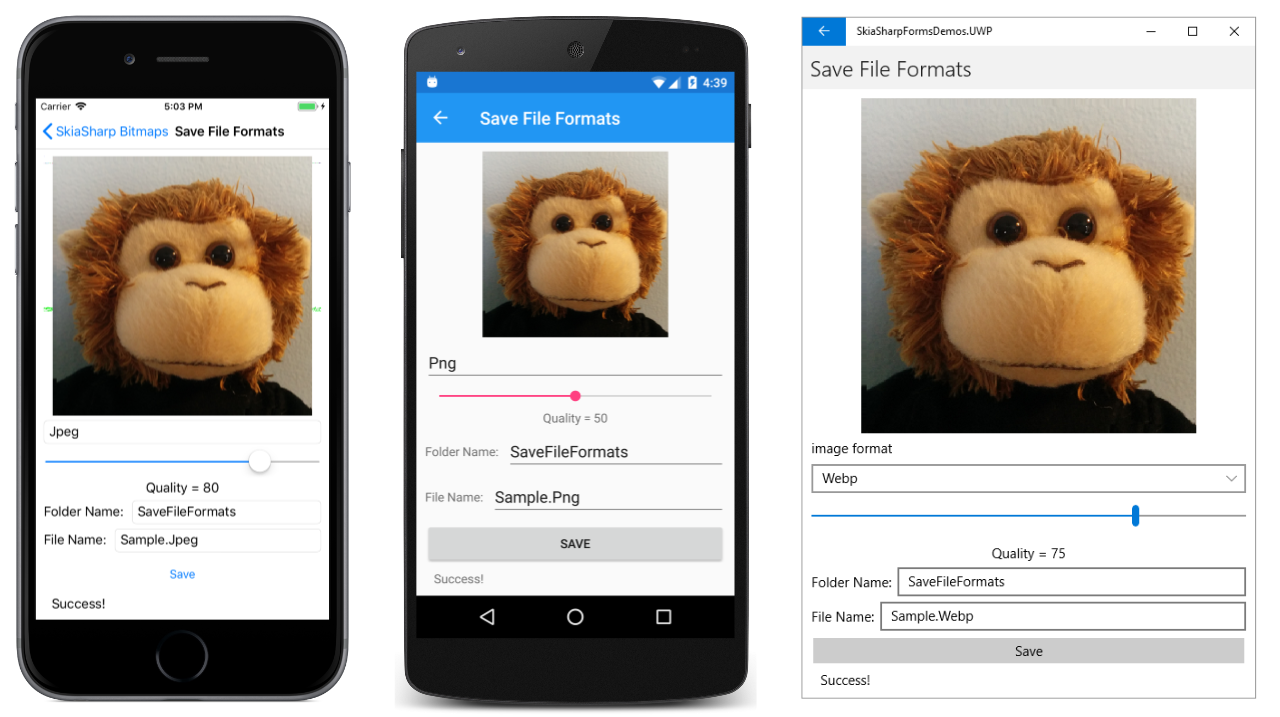
That screenshot shows the only three formats that are supported on these platforms:
- JPEG
- PNG
- WebP
For all the other formats, the Encode method writes nothing into the stream and the resultant byte array is empty.
The bitmap that the Save File Formats page saves is 600-pixels square. With 4 bytes per pixel, that's a total of 1,440,000 bytes in memory. The following table shows the file size for various combinations of file format and quality:
| Format | Quality | Size |
|---|---|---|
| PNG | N/A | 492K |
| JPEG | 0 | 2.95K |
| 50 | 22.1K | |
| 100 | 206K | |
| WebP | 0 | 2.71K |
| 50 | 11.9K | |
| 100 | 101K |
You can experiment with various quality settings and examine the results.
Saving finger-paint art
One common use of a bitmap is in drawing programs, where it functions as something called a shadow bitmap. All the drawing is retained on the bitmap, which is then displayed by the program. The bitmap also comes in handy for saving the drawing.
The Finger Painting in SkiaSharp article demonstrated how to use touch tracking to implement a primitive finger-painting program. The program supported only one color and only one stroke width, but it retained the entire drawing in a collection of SKPath objects.
The Finger Paint with Save page in the sample also retains the entire drawing in a collection of SKPath objects, but it also renders the drawing on a bitmap, which it can save to your photo library.
Much of this program is similar to the original Finger Paint program. One enhancement is that the XAML file now instantiates buttons labeled Clear and Save:
<?xml version="1.0" encoding="utf-8" ?>
<ContentPage xmlns="http://schemas.microsoft.com/dotnet/2021/maui"
             xmlns:x="http://schemas.microsoft.com/winfx/2009/xaml"
             xmlns:skia="clr-namespace:SkiaSharp.Views.Maui.Controls;assembly=SkiaSharp.Views.Maui.Controls"
             x:Class="SkiaSharpFormsDemos.Bitmaps.FingerPaintSavePage"
             Title="Finger Paint Save">

    <StackLayout>
        <Grid BackgroundColor="White"
              VerticalOptions="FillAndExpand">
            <skia:SKCanvasView x:Name="canvasView"
                               PaintSurface="OnCanvasViewPaintSurface"
                               EnableTouchEvents="True"
                               Touch="OnTouch" />
        </Grid>

        <Grid>
            <Grid.ColumnDefinitions>
                <ColumnDefinition Width="*" />
                <ColumnDefinition Width="*" />
            </Grid.ColumnDefinitions>
        </Grid>

        <Button Text="Clear"
                Grid.Row="0"
                Margin="50, 5"
                Clicked="OnClearButtonClicked" />

        <Button Text="Save"
                Grid.Row="1"
                Margin="50, 5"
                Clicked="OnSaveButtonClicked" />

    </StackLayout>
</ContentPage>
The code-behind file maintains a field of type SKBitmap named saveBitmap. This bitmap is created or recreated in the PaintSurface handler whenever the size of the display surface changes. If the bitmap needs to be recreated, the contents of the existing bitmap are copied to the new bitmap so that everything is retained no matter how the display surface changes in size:
public partial class FingerPaintSavePage : ContentPage
{
    ···
    SKBitmap saveBitmap;

    public FingerPaintSavePage ()
    {
        InitializeComponent ();
    }

    void OnCanvasViewPaintSurface(object? sender, SKPaintSurfaceEventArgs args)
    {
        SKImageInfo info = args.Info;
        SKSurface surface = args.Surface;
        SKCanvas canvas = surface.Canvas;

        // Create bitmap the size of the display surface
        if (saveBitmap == null)
        {
            saveBitmap = new SKBitmap(info.Width, info.Height);
        }
        // Or create new bitmap for a new size of display surface
        else if (saveBitmap.Width < info.Width || saveBitmap.Height < info.Height)
        {
            SKBitmap newBitmap = new SKBitmap(Math.Max(saveBitmap.Width, info.Width),
                                              Math.Max(saveBitmap.Height, info.Height));

            using (SKCanvas newCanvas = new SKCanvas(newBitmap))
            {
                newCanvas.Clear();
                newCanvas.DrawBitmap(saveBitmap, 0, 0);
            }

            saveBitmap = newBitmap;
        }

        // Render the bitmap
        canvas.Clear();
        canvas.DrawBitmap(saveBitmap, 0, 0);
    }
    ···
}
The drawing done by the PaintSurface handler occurs at the very end, and consists solely of rendering the bitmap.
The touch processing is similar to the earlier program. The program maintains two collections, inProgressPaths and completedPaths, that contain everything the user has drawn since the last time the display was cleared. For each touch event, the OnTouch handler calls UpdateBitmap:
public partial class FingerPaintSavePage : ContentPage
{
    Dictionary<long, SKPath> inProgressPaths = new Dictionary<long, SKPath>();
    List<SKPath> completedPaths = new List<SKPath>();

    SKPaint paint = new SKPaint
    {
        Style = SKPaintStyle.Stroke,
        Color = SKColors.Blue,
        StrokeWidth = 10,
        StrokeCap = SKStrokeCap.Round,
        StrokeJoin = SKStrokeJoin.Round
    };
    ···
    void OnTouch(object? sender, SKTouchEventArgs e)
    {
        switch (e.ActionType)
        {
            case SKTouchAction.Pressed:
                if (!inProgressPaths.ContainsKey(e.Id))
                {
                    SKPath path = new SKPath();
                    path.MoveTo(e.Location);
                    inProgressPaths.Add(e.Id, path);
                    UpdateBitmap();
                }
                break;

            case SKTouchAction.Moved:
                if (inProgressPaths.ContainsKey(e.Id))
                {
                    SKPath path = inProgressPaths[e.Id];
                    path.LineTo(e.Location);
                    UpdateBitmap();
                }
                break;

            case SKTouchAction.Released:
                if (inProgressPaths.ContainsKey(e.Id))
                {
                    completedPaths.Add(inProgressPaths[e.Id]);
                    inProgressPaths.Remove(e.Id);
                    UpdateBitmap();
                }
                break;

            case SKTouchAction.Cancelled:
                if (inProgressPaths.ContainsKey(e.Id))
                {
                    inProgressPaths.Remove(e.Id);
                    UpdateBitmap();
                }
                break;
        }

        e.Handled = true;
    }

    void UpdateBitmap()
    {
        using (SKCanvas saveBitmapCanvas = new SKCanvas(saveBitmap))
        {
            saveBitmapCanvas.Clear();

            foreach (SKPath path in completedPaths)
            {
                saveBitmapCanvas.DrawPath(path, paint);
            }

            foreach (SKPath path in inProgressPaths.Values)
            {
                saveBitmapCanvas.DrawPath(path, paint);
            }
        }

        canvasView.InvalidateSurface();
    }
    ···
}
The UpdateBitmap method redraws saveBitmap by creating a new SKCanvas, clearing it, and then rendering all the paths on the bitmap. It concludes by invalidating canvasView so that the bitmap can be drawn on the display.
Here are the handlers for the two buttons. The Clear button clears both path collections, updates saveBitmap (which results in clearing the bitmap), and invalidates the SKCanvasView:
public partial class FingerPaintSavePage : ContentPage
{
    ···
    void OnClearButtonClicked(object? sender, EventArgs args)
    {
        completedPaths.Clear();
        inProgressPaths.Clear();
        UpdateBitmap();
        canvasView.InvalidateSurface();
    }

    async void OnSaveButtonClicked(object? sender, EventArgs args)
    {
        using (SKImage image = SKImage.FromBitmap(saveBitmap))
        {
            SKData data = image.Encode();
            DateTime dt = DateTime.Now;
            string filename = String.Format("FingerPaint-{0:D4}{1:D2}{2:D2}-{3:D2}{4:D2}{5:D2}{6:D3}.png",
                                            dt.Year, dt.Month, dt.Day, dt.Hour, dt.Minute, dt.Second, dt.Millisecond);

            using var stream = new MemoryStream(data.ToArray());
            var result = await FileSaver.Default.SaveAsync(filename, stream, CancellationToken.None);

            if (!result.IsSuccessful)
            {
                await DisplayAlertAsync("FingerPaint", "Artwork could not be saved. Sorry!", "OK");
            }
        }
    }
}
The Save button handler uses the simplified Encode method from SKImage. This method encodes using the PNG format. The SKImage object is created based on saveBitmap, and the SKData object contains the encoded PNG file.
The ToArray method of SKData obtains an array of bytes. This data is passed to the FileSaver from the Community Toolkit, which opens a native file picker dialog so the user can choose where to save their artwork.
Here's the program in action:
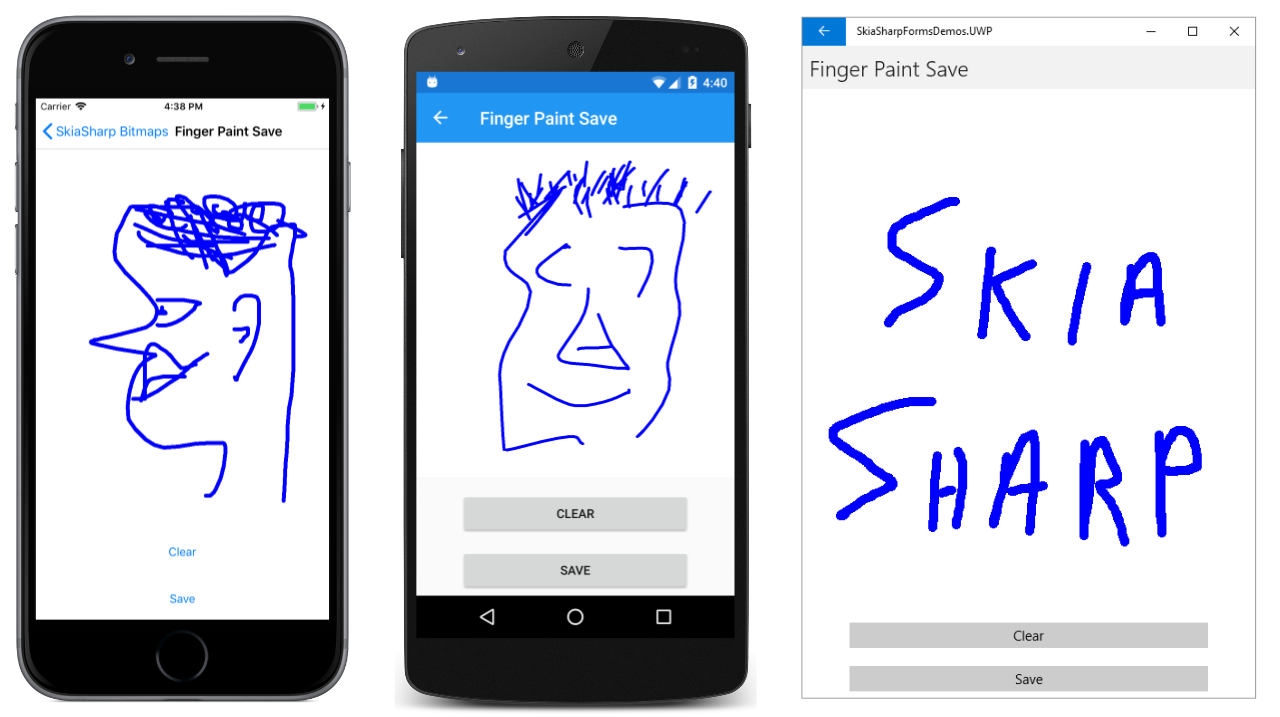
A very similar technique is used in the sample. This is also a finger-painting program except that the user paints on a spinning disk that then reproduces the designs on its other four quadrants. The color of the finger paint changes as the disk is spinning:
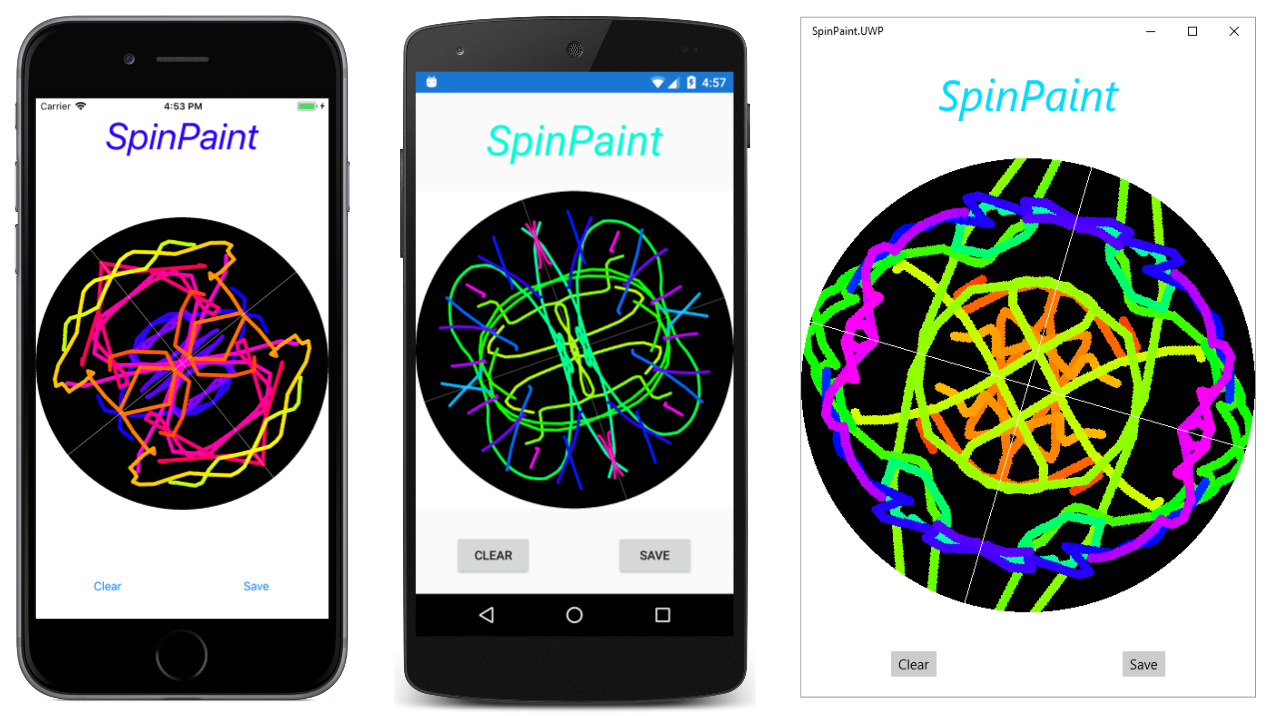
The Save button of SpinPaint class is similar to Finger Paint in that it uses the Community Toolkit's FileSaver to let the user choose where to save their artwork.