Finger Painting in SkiaSharp
Use your fingers to paint on the canvas.
An SKPath object can be continually updated and displayed. This feature allows a path to be used for interactive drawing, such as in a finger-painting program.
The SKCanvasView has built-in touch support that allows tracking individual fingers on the screen. By setting EnableTouchEvents="True" and handling the Touch event, you can easily implement multi-touch drawing scenarios.
The Finger Paint page in SkiaSharpFormsDemos is a simplified implementation of finger painting. It does not allow selecting color or stroke width, it has no way to clear the canvas, and of course you can't save your artwork.
The FingerPaintPage.xaml file defines the SKCanvasView with touch events enabled:
<ContentPage xmlns="http://schemas.microsoft.com/dotnet/2021/maui"
             xmlns:x="http://schemas.microsoft.com/winfx/2009/xaml"
             xmlns:skia="clr-namespace:SkiaSharp.Views.Maui.Controls;assembly=SkiaSharp.Views.Maui.Controls"
             x:Class="SkiaSharpFormsDemos.Paths.FingerPaintPage"
             Title="Finger Paint">

    <Grid BackgroundColor="White">
        <skia:SKCanvasView x:Name="canvasView"
                           EnableTouchEvents="True"
                           Touch="OnTouch"
                           PaintSurface="OnCanvasViewPaintSurface" />
    </Grid>
</ContentPage>
The EnableTouchEvents property enables touch tracking, and the Touch event is raised for each touch action.
The FingerPaintPage.xaml.cs code-behind file defines two collections for storing the SKPath objects, as well as an SKPaint object for rendering these paths:
public partial class FingerPaintPage : ContentPage
{
    Dictionary<long, SKPath> inProgressPaths = new Dictionary<long, SKPath>();
    List<SKPath> completedPaths = new List<SKPath>();

    SKPaint paint = new SKPaint
    {
        Style = SKPaintStyle.Stroke,
        Color = SKColors.Blue,
        StrokeWidth = 10,
        StrokeCap = SKStrokeCap.Round,
        StrokeJoin = SKStrokeJoin.Round
    };

    public FingerPaintPage()
    {
        InitializeComponent();
    }
    ...
}
As the name suggests, the inProgressPaths dictionary stores the paths that are currently being drawn by one or more fingers. The dictionary key is the touch ID that accompanies the touch events. The completedPaths field is a collection of paths that were finished when a finger that was drawing the path lifted from the screen.
The Touch handler manages these two collections. When a finger first touches the screen, a new SKPath is added to inProgressPaths. As that finger moves, additional points are added to the path. When the finger is released, the path is transferred to the completedPaths collection. You can paint with multiple fingers simultaneously. After each change to one of the paths or collections, the SKCanvasView is invalidated:
public partial class FingerPaintPage : ContentPage
{
    ...
    void OnTouch(object? sender, SKTouchEventArgs e)
    {
        switch (e.ActionType)
        {
            case SKTouchAction.Pressed:
                if (!inProgressPaths.ContainsKey(e.Id))
                {
                    SKPath path = new SKPath();
                    path.MoveTo(e.Location);
                    inProgressPaths.Add(e.Id, path);
                    canvasView.InvalidateSurface();
                }
                break;

            case SKTouchAction.Moved:
                if (inProgressPaths.ContainsKey(e.Id))
                {
                    SKPath path = inProgressPaths[e.Id];
                    path.LineTo(e.Location);
                    canvasView.InvalidateSurface();
                }
                break;

            case SKTouchAction.Released:
                if (inProgressPaths.ContainsKey(e.Id))
                {
                    completedPaths.Add(inProgressPaths[e.Id]);
                    inProgressPaths.Remove(e.Id);
                    canvasView.InvalidateSurface();
                }
                break;

            case SKTouchAction.Cancelled:
                if (inProgressPaths.ContainsKey(e.Id))
                {
                    inProgressPaths.Remove(e.Id);
                    canvasView.InvalidateSurface();
                }
                break;
        }
        e.Handled = true;
    }
    ...
}
The e.Location property provides the touch location already in pixel coordinates, so no conversion is necessary. Setting e.Handled = true ensures that the view continues to receive touch events for the same finger.
The PaintSurface handler then simply renders both collections of paths. The earlier completed paths appear underneath the paths in progress:
public partial class FingerPaintPage : ContentPage
{
    ...
    void OnCanvasViewPaintSurface(object? sender, SKPaintSurfaceEventArgs args)
    {
        SKCanvas canvas = args.Surface.Canvas;
        canvas.Clear();

        foreach (SKPath path in completedPaths)
        {
            canvas.DrawPath(path, paint);
        }

        foreach (SKPath path in inProgressPaths.Values)
        {
            canvas.DrawPath(path, paint);
        }
    }
    ...
}
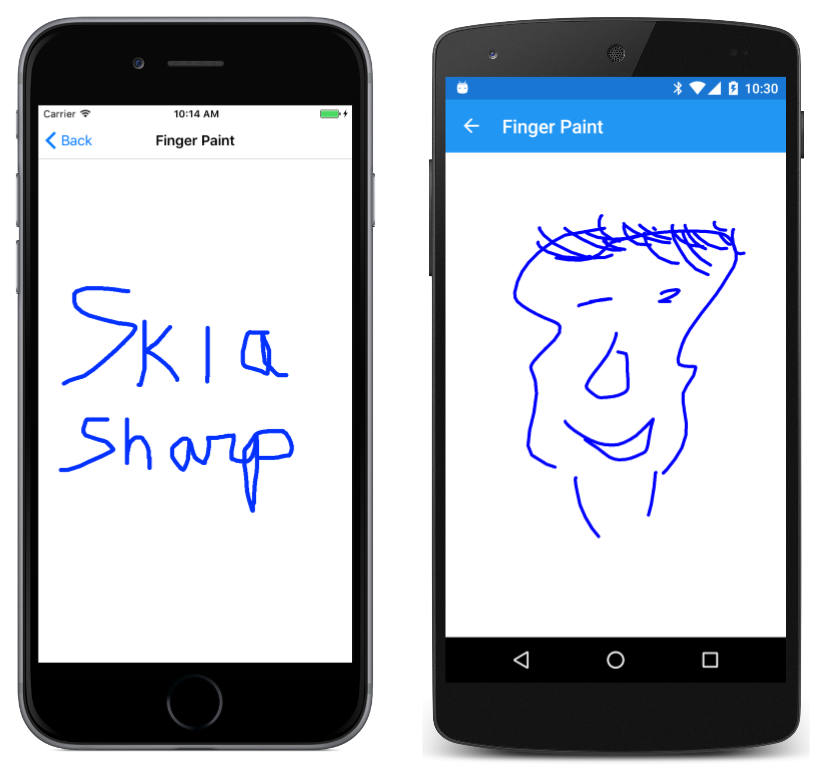
Your finger paintings are only limited by your talent:
You've now seen how to draw lines and to define curves using parametric equations. A later section on SkiaSharp Curves and Paths covers the various types of curves that SKPath supports. But a useful prerequisite is an exploration of SkiaSharp Transforms.