Bitmap Basics in SkiaSharp
Load bitmaps from various sources and display them.
The support of bitmaps in SkiaSharp is quite extensive. This article covers only the basics — how to load bitmaps and how to display them:
A much deeper exploration of bitmaps can be found in the section SkiaSharp Bitmaps.
A SkiaSharp bitmap is an object of type SKBitmap. There are many ways to create a bitmap but this article restricts itself to the SKBitmap.Decode method, which loads the bitmap from a .NET Stream object.
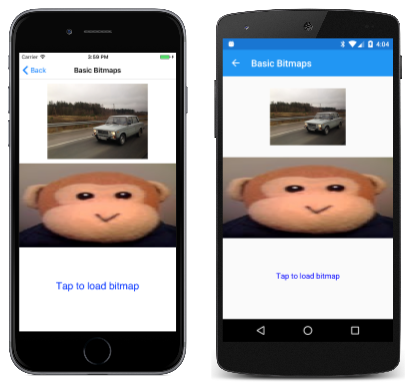
The Basic Bitmaps page in the SkiaSharpFormsDemos program demonstrates how to load bitmaps from three different sources:
- From over the Internet
- From a raw asset in the app package
- From the user's photo library
Three nullable SKBitmap? fields for these three sources are defined in the BasicBitmapsPage class. This pattern allows bitmaps to load asynchronously without blocking the UI thread:
public class BasicBitmapsPage : ContentPage
{
    SKCanvasView canvasView;
    SKBitmap? webBitmap;
    SKBitmap? resourceBitmap;
    SKBitmap? libraryBitmap;

    public BasicBitmapsPage()
    {
        Title = "Basic Bitmaps";

        canvasView = new SKCanvasView();
        canvasView.PaintSurface += OnCanvasViewPaintSurface;
        Content = canvasView;
        ...
    }
    ...
}
The key advantages of using nullable SKBitmap? fields:
- Loading happens asynchronously without blocking the UI thread
- Simple null check in the
PaintSurfacehandler before drawing - Fire-and-forget the async load with
_ = LoadBitmapAsync() - Call
InvalidateSurface()when loading completes to trigger a repaint
Loading a Bitmap from the Web
To load a bitmap based on a URL, you can use the HttpClient class. You should instantiate only one instance of HttpClient and reuse it, so store it as a field:
HttpClient httpClient = new HttpClient();
When using HttpClient with iOS and Android applications, you'll want to set project properties as described in the documents on Transport Layer Security (TLS) 1.2.
Because it's most convenient to use the await operator with HttpClient, the code can't be executed in the BasicBitmapsPage constructor. Instead, fire-and-forget the async load from the constructor. The URL here points to a web resource with sample bitmaps. A package on the web site allows appending a specification for resizing the bitmap to a particular width:
public BasicBitmapsPage()
{
    // ... setup code ...
    _ = LoadWebBitmapAsync();
}

async Task LoadWebBitmapAsync()
{
    string url = "https://raw.githubusercontent.com/mono/SkiaSharp/refs/heads/docs/samples/DocsSamplesApp/DocsSamplesApp/Resources/Images/dotnet_bot.png";

    try
    {
        using (Stream stream = await httpClient.GetStreamAsync(url))
        using (MemoryStream memStream = new MemoryStream())
        {
            await stream.CopyToAsync(memStream);
            memStream.Seek(0, SeekOrigin.Begin);

            webBitmap = SKBitmap.Decode(memStream);
            canvasView.InvalidateSurface();
        };
    }
    catch
    {
        // Handle error silently
    }
}
The Android operating system raises an exception when using the Stream returned from GetStreamAsync in the SKBitmap.Decode method because it's performing a lengthy operation on a main thread. For this reason, the contents of the bitmap file are copied to a MemoryStream object using CopyToAsync.
The static SKBitmap.Decode method is responsible for decoding bitmap files. It works with JPEG, PNG, and GIF bitmap formats, and stores the results in an internal SkiaSharp format. At this point, the SKCanvasView needs to be invalidated to allow the PaintSurface handler to update the display.
Loading a Bitmap from a Raw Asset
In terms of code, the easiest approach to loading bitmaps is including a bitmap as a raw asset in your application. In .NET MAUI, place image files in the Resources/Raw folder with a build action of MauiAsset.
You can load raw assets using the FileSystem.OpenAppPackageFileAsync method, which only requires the filename. Fire-and-forget the async load from the constructor:
public BasicBitmapsPage()
{
    // ... setup code ...
    _ = LoadResourceBitmapAsync();
}

async Task LoadResourceBitmapAsync()
{
    using Stream stream = await FileSystem.OpenAppPackageFileAsync("monkey.png");
    resourceBitmap = SKBitmap.Decode(stream);
    canvasView.InvalidateSurface();
}
The FileSystem class is in the Microsoft.Maui.Storage namespace, which is available by default in .NET MAUI applications. This Stream object can be passed directly to the SKBitmap.Decode method.
Loading a Bitmap from the Photo Library
It's also possible for the user to load a photo from the device's picture library. This facility is not provided by .NET MAUI itself. The job requires using MAUI Essentials MediaPicker.
The BasicBitmapsPage constructor adds a TapGestureRecognizer to the SKCanvasView to be notified of taps. On receipt of a tap, the Tapped handler uses MediaPicker to pick a photo and fires off the async load:
// Add tap gesture recognizer
TapGestureRecognizer tapRecognizer = new TapGestureRecognizer();
tapRecognizer.Tapped += async (sender, args) =>
{
    // Load bitmap from photo library
    var photo = await MediaPicker.PickPhotoAsync();

    if (photo != null)
    {
        _ = LoadLibraryBitmapAsync(photo);
    }
};
canvasView.GestureRecognizers.Add(tapRecognizer);

async Task LoadLibraryBitmapAsync(FileResult photo)
{
    using Stream stream = await photo.OpenReadAsync();
    libraryBitmap = SKBitmap.Decode(stream);
    canvasView.InvalidateSurface();
}
Notice that the loading method calls InvalidateSurface() after decoding the bitmap. This triggers a new call to the PaintSurface handler to display the loaded bitmap.
Displaying the Bitmaps
The PaintSurface handler needs to display three bitmaps. The handler assumes that the phone is in portrait mode and divides the canvas vertically into three equal parts.
The first bitmap is displayed with the simplest DrawBitmap method. All you need to specify are the X and Y coordinates where the upper-left corner of the bitmap is to be positioned:
public void DrawBitmap (SKBitmap bitmap, Single x, Single y, SKPaint paint = null)
Although an SKPaint parameter is defined, it has a default value of null and you can ignore it. The pixels of the bitmap are simply transferred to the pixels of the display surface with a one-to-one mapping. You'll see an application for this SKPaint argument in the next section on SkiaSharp Transparency.
A program can obtain the pixel dimensions of a bitmap with the Width and Height properties. These properties allow the program to calculate coordinates to position the bitmap in the center of the upper-third of the canvas. The handler performs a simple null check before drawing:
void OnCanvasViewPaintSurface(object? sender, SKPaintSurfaceEventArgs args)
{
    SKImageInfo info = args.Info;
    SKSurface surface = args.Surface;
    SKCanvas canvas = surface.Canvas;

    canvas.Clear();

    if (webBitmap is not null)
    {
        float x = (info.Width - webBitmap.Width) / 2;
        float y = (info.Height / 3 - webBitmap.Height) / 2;
        canvas.DrawBitmap(webBitmap, x, y);
    }
    ...
}
The simple is not null check ensures the bitmap is loaded before attempting to draw it.
The other two bitmaps are displayed with a version of DrawBitmap with an SKRect parameter:
public void DrawBitmap (SKBitmap bitmap, SKRect dest, SKPaint paint = null)
A third version of DrawBitmap has two SKRect arguments for specifying a rectangular subset of the bitmap to display, but that version isn't used in this article.
Here's the code to display the bitmap loaded from a raw asset, using the same null check:
void OnCanvasViewPaintSurface(object? sender, SKPaintSurfaceEventArgs args)
{
    ...
    if (resourceBitmap is not null)
    {
        canvas.DrawBitmap(resourceBitmap,
            new SKRect(0, info.Height / 3, info.Width, 2 * info.Height / 3));
    }
    ...
}
The bitmap is stretched to the dimensions of the rectangle, which is why the monkey is horizontally stretched in these screenshots:

The third image — which you can only see if you run the program and load a photo from your own picture library — is also displayed within a rectangle, but the rectangle's position and size are adjusted to maintain the bitmap's aspect ratio. This calculation is a little more involved because it requires calculating a scaling factor based on the size of the bitmap and the destination rectangle, and centering the rectangle in that area:
void OnCanvasViewPaintSurface(object? sender, SKPaintSurfaceEventArgs args)
{
    ...
    if (libraryBitmap is not null)
    {
        float scale = Math.Min((float)info.Width / libraryBitmap.Width,
                               info.Height / 3f / libraryBitmap.Height);

        float left = (info.Width - scale * libraryBitmap.Width) / 2;
        float top = (info.Height / 3 - scale * libraryBitmap.Height) / 2;
        float right = left + scale * libraryBitmap.Width;
        float bottom = top + scale * libraryBitmap.Height;
        SKRect rect = new SKRect(left, top, right, bottom);
        rect.Offset(0, 2 * info.Height / 3);

        canvas.DrawBitmap(libraryBitmap, rect);
    }
    else
    {
        using (SKPaint paint = new SKPaint())
        using (SKFont font = new SKFont())
        {
            paint.Color = SKColors.Blue;
            font.Size = 48;

            canvas.DrawText("Tap to load bitmap",
                info.Width / 2, 5 * info.Height / 6, SKTextAlign.Center, font, paint);
        }
    }
}
If no bitmap has yet been loaded from the picture library, then the else block displays some text to prompt the user to tap the screen.
You can display bitmaps with various degrees of transparency, and the next article on SkiaSharp Transparency describes how.